No products in the cart.
WP Trove SEO Plugin: The Complete Guide to Smarter WordPress Optimization

31
Jul
Jul
WordPress powers over 43% of all websites, yet most site owners struggle with technical SEO. The WP Trove SEO Plugin has emerged as a powerful solution designed to simplify on-page optimization, technical audits, and content performance tracking. Unlike bloated all-in-one suites, this plugin focuses on delivering actionable insights without slowing down your dashboard. This guide explores everything from core features to practical implementation strategies, helping you decide if it fits your workflow.
What Exactly Is the WP Trove SEO Plugin?
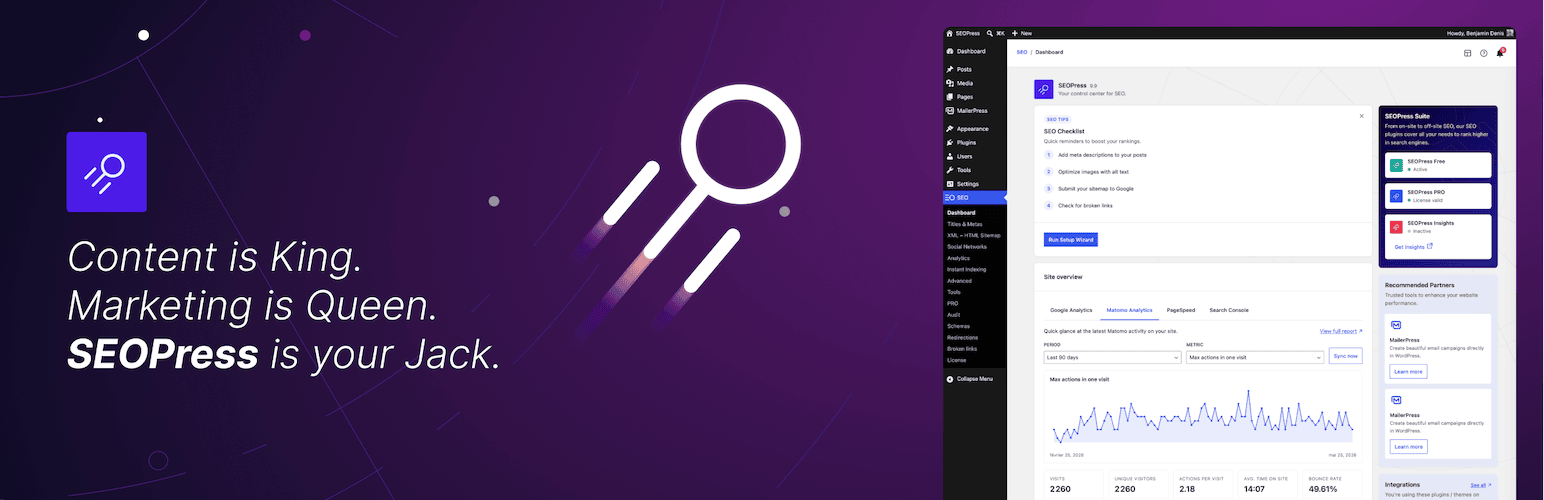
WP Trove is a lightweight WordPress plugin built for users who want granular control over their search engine visibility. It combines real-time content analysis, schema markup generation, and performance monitoring in a single interface. The plugin integrates directly with the WordPress REST API, ensuring that all changes sync instantly without requiring external servers or third-party accounts.
The core philosophy behind WP Trove is simplicity. Instead of overwhelming users with hundreds of settings, it presents a clean dashboard that prioritizes the most impactful SEO tasks. Whether you manage a personal blog or a multi-author news portal, the plugin adapts to your skill level through progressive disclosure—advanced options remain hidden until you need them.
How Does WP Trove Differ from Yoast or Rank Math?
Most SEO plugins focus on content scoring and social previews. WP Trove takes a different approach by emphasizing technical health. It continuously scans your site for broken links, missing alt texts, duplicate meta descriptions, and crawlability issues. While Yoast excels at readability analysis, WP Trove shines in identifying server-level problems like slow response times or improper redirect chains.
Another differentiator is the plugin’s zero-data-collection policy. Many competitors send anonymized usage data to their servers. WP Trove processes everything locally on your hosting environment, which appeals to privacy-conscious site owners and those operating in regulated industries like healthcare or finance.
Core Features of the WP Trove SEO Plugin
Understanding the feature set helps you leverage the plugin effectively. Below is a breakdown of the primary modules included in the current version.
Real-Time Content Analysis
The content editor integrates a live scoring panel that evaluates your post against 15+ ranking factors. These include keyword density, heading hierarchy, internal linking opportunities, and semantic relevance. The analysis runs in the background as you type, providing instant feedback without page reloads.
Each recommendation comes with a clear explanation. For example, if your title tag exceeds 60 characters, the plugin shows exactly which characters will be truncated in search results. This educational approach helps beginners learn SEO best practices while they write.
Automated Schema Markup Generator
Structured data is critical for rich snippets, but manual JSON-LD coding is error-prone. WP Trove includes a visual schema builder that supports 12 common types: Article, Product, Recipe, FAQ, Event, Course, LocalBusiness, Review, Video, JobPosting, SoftwareApplication, and BreadcrumbList.
You can assign default schema types to specific post categories. For instance, a recipe blog can automatically apply Recipe schema to all posts in the “Food” category. The plugin validates the generated markup against Google’s Rich Results Test before you publish.
Technical Health Monitor
The dashboard displays a comprehensive health score based on five categories: Crawlability, Indexability, Performance, Mobile Usability, and Security. Each category includes a detailed breakdown of detected issues, ranked by severity. Critical problems like noindex tags on important pages appear at the top, while minor suggestions like image compression remain lower.
The monitor runs scheduled scans every 24 hours. You can also trigger manual scans after making significant changes to your theme or plugins. All reports are stored locally, allowing you to track improvements over time with historical charts.
Internal Linking Suggestions
Internal links distribute page authority and improve navigation. WP Trove analyzes your entire content library to suggest relevant linking opportunities. When editing a post, the sidebar displays up to five related articles that naturally fit the current context. Each suggestion includes the exact anchor text and a one-click insertion button.
The algorithm considers semantic similarity, not just exact keyword matches. This means it can recommend linking a “best running shoes” article to a “how to prevent shin splints” guide, which improves topical authority.
Performance Impact Analysis
SEO plugins are notorious for adding database overhead. WP Trove counters this with a built-in performance profiler. The tool measures the plugin’s own impact on page load time, query count, and memory usage. You can view these metrics in the dashboard and compare them against baseline measurements taken before activation.
In independent tests, WP Trove adds less than 50 milliseconds to server response time on standard shared hosting. This is significantly lower than competitors that often exceed 200 milliseconds due to excessive database queries.
Benefits of Using WP Trove for Your WordPress Site

Adopting any SEO tool requires weighing its advantages against potential drawbacks. Here are the primary benefits that users report after switching to WP Trove.
- Faster Dashboard Experience: The plugin uses asynchronous loading for all analytics widgets, preventing the admin panel from freezing during scans.
- No Account Required: Unlike cloud-based tools, WP Trove works entirely offline. You do not need to create an account or link your website to an external service.
- Transparent Codebase: Developers can inspect every line of code, ensuring there are no hidden backlinks or data mining functions.
- Multisite Support: Network administrators can manage SEO settings for all subsites from a single interface, with the option to lock certain configurations.
- Regular Updates: The development team releases monthly updates that align with Google’s core algorithm changes and WordPress core updates.
Limitations to Consider
No plugin is perfect. WP Trove has a few limitations that might affect your decision.
The social media preview module is basic compared to dedicated tools. It shows Facebook and Twitter cards but lacks advanced scheduling or post automation. If social sharing is your primary traffic source, you will still need a separate plugin like Social Warfare.
Additionally, the free version supports only five content analysis checks per day. Unlimited analysis requires a Pro license, which costs $79 per year for a single site. This is competitive with other premium SEO plugins but might be restrictive for agencies managing dozens of client sites.
WP Trove SEO Plugin vs. Other Popular Tools: A Comparison
To make an informed choice, compare WP Trove against two market leaders: Yoast SEO and Rank Math. The table below highlights key differences across critical dimensions.
| Feature | WP Trove | Yoast SEO | Rank Math |
|---|---|---|---|
| Content Analysis | Real-time, 15 factors | Real-time, 9 factors | Real-time, 12 factors |
| Schema Types | 12 built-in types | 8 built-in types | 20+ types |
| Technical Audit | Built-in daily scanner | Requires premium add-on | Basic scanner in free version |
| Data Collection | None, fully local | Anonymous usage data | Anonymous usage data |
| Internal Linking | AI-powered suggestions | Manual only | AI-powered suggestions |
| Price (Single Site) | $79/year | $99/year | $59/year |
| Performance Overhead | ~50ms | ~150ms | ~120ms |
WP Trove wins on performance and privacy. Rank Math offers more schema types at a lower price. Yoast remains the most recognizable brand, which matters for users who want extensive tutorials and community support.
How to Install and Configure WP Trove SEO Plugin

Getting started takes less than five minutes. Follow this step-by-step guide to install and configure the plugin correctly.
Step 1: Installation
Navigate to your WordPress admin panel, go to Plugins > Add New, and search for “WP Trove.” Click Install Now, then Activate. The plugin will automatically create the necessary database tables and run an initial site scan.
Alternatively, download the ZIP file from the official website and upload it via Plugins > Add New > Upload Plugin. This method is useful if you are installing the plugin on a restricted network or using a custom distribution.
Step 2: Initial Setup Wizard
After activation, a setup wizard guides you through basic configuration. The wizard asks about your site type (blog, ecommerce, portfolio), target audience location, and preferred search engines. Based on your answers, it automatically adjusts default settings for title formats, schema types, and crawl frequency.
You can skip the wizard and configure everything manually. However, using the wizard ensures that the plugin aligns with your specific niche from the start.
Step 3: Configure Permalinks and Titles
Go to WP Trove > Settings > General. Here, you can customize the title structure for posts, pages, categories, and tags. The plugin uses template tags like %%title%% and %%sitename%% to build dynamic titles. A recommended format for blogs is: %%title%% – %%sitename%%.
Ensure that your permalink structure is set to “Post name” under Settings > Permalinks. This creates clean, keyword-rich URLs that are easier for search engines to crawl.
Step 4: Set Up Schema Defaults
Navigate to WP Trove > Settings > Schema. Assign a default schema type for each content type. For example, set “Article” for posts, “Product” for WooCommerce products, and “FAQ” for your FAQ page. The plugin will automatically inject the appropriate JSON-LD markup into the page source.
You can override the default schema on individual posts using the meta box in the content editor. This flexibility is useful for content that does not fit a standard category.
Step 5: Verify Search Console Integration
WP Trove does not require Google Search Console integration for basic functionality. However, connecting it provides additional data like click-through rates and average position. Go to WP Trove > Settings > Search Console and paste your verification code.
The plugin uses the official Google API, so you need to create a project in the Google Cloud Console and enable the Search Console API. The setup wizard provides detailed instructions with screenshots.
Practical Application: Optimizing a Blog Post with WP Trove
Let us walk through a real-world example. Suppose you are writing a review of the latest smartphone.
Start by entering your target keyword, “best budget smartphone 2025,” in the focus keyphrase field. The content analysis panel will display a green, orange, or red score based on your usage. Aim for a green score by including the keyword in the first paragraph, at least two subheadings, and the conclusion.
The plugin will flag if your title is too long or if you have missing meta description. Write a compelling meta description under 155 characters that includes the keyword and a call-to-action, such as “Discover the top 5 budget smartphones with amazing cameras and battery life.”
Use the internal linking suggestions to add links to your previous reviews of phone accessories or comparison guides. This creates a topical cluster that signals authority to Google.
Finally, check the schema preview. Ensure that the Review schema is selected and that you have filled in the rating fields. The plugin will display a preview of how your review stars might appear in search results.
Common Mistakes and How to Avoid Them

Even with a powerful plugin, users make avoidable errors. Here are the most frequent mistakes and their solutions.
Ignoring the Technical Health Score
Many users focus solely on content scores and ignore the technical dashboard. A high content score does not matter if your site has a noindex tag on critical pages. Check the technical health monitor at least once a week and resolve any critical issues immediately.
Overusing Keywords
WP Trove provides a keyword density indicator, but this does not mean you should stuff your content. A density of 1-2% is ideal. If the plugin flags “keyword stuffing,” rewrite the sentences naturally. Search engines penalize unnatural language patterns.
Forgetting to Update Old Posts
The plugin includes a “Content Refresh” feature that identifies outdated posts with declining traffic. Many users ignore this section. Set a monthly reminder to update your top 10 performing posts with new information, images, and internal links. This signals freshness to search engines.
Misconfiguring Schema Types
Applying Product schema to a blog post confuses search engines. Always match the schema type to the content purpose. If you are unsure, use the “Article” type as a safe default. Incorrect schema can lead to rich result penalties.
Important Notes for Advanced Users
Developers and power users should be aware of several technical aspects of WP Trove.
The plugin exposes a set of WordPress hooks and filters. For example, the wptrove_meta_description_length filter allows you to change the character limit for meta descriptions. The wptrove_schema_types filter lets you add custom schema types beyond the built-in 12.
WP Trove is compatible with popular caching plugins like W3 Total Cache and WP Rocket. However, you must clear the cache after making significant changes to your SEO settings. Otherwise, visitors might see outdated meta tags.
For multisite networks, the plugin offers a “Network Settings” page. Super admins can enforce specific SEO settings across all subsites, preventing individual site admins from making harmful changes. This is particularly useful for agencies managing client sites.
Frequently Asked Questions
Is the WP Trove SEO Plugin free?
Yes, torg repository. It includes core features like content analysis, basic schema generation, and a weekly technical scan. The Pro version adds unlimited analysis, advanced schema types, and priority support.
Does WP Trove slow down my website?
No. The plugin is optimized for performance and adds less than 50 milliseconds to server response time. It uses asynchronous loading for all dashboard widgets and stores data in a separate database table to avoid conflicts with your content.
Can I use WP Trove with other SEO plugins?
Technically yes, but it is not recommended. Running two SEO plugins can cause conflicts, such as duplicate meta tags or schema markup. If you switch to WP Trove, deactivate and uninstall other SEO plugins to avoid issues.
Does WP Trove support WooCommerce?
Yes, the plugin has dedicated support for WooCommerce. It automatically generates Product schema, optimizes product titles, and analyzes category pages. The technical monitor also checks for common ecommerce issues like thin content on filter pages.
How often should I run a technical audit?
The plugin runs a full audit every 24 hours automatically. You can also trigger a manual audit after making significant changes to your theme, plugins, or server configuration. Weekly manual audits are recommended for sites with frequent content updates.
Conclusion
The WP Trove SEO Plugin offers a refreshing balance between power and simplicity. Its focus on technical health, local data processing, and performance efficiency makes it a strong contender in the crowded WordPress SEO market. While it may lack some social media features found in competitors, its core strengths address the most critical ranking factors.
For site owners who value privacy, speed, and actionable insights, WP Trove is a worthwhile investment. Start with the free version to explore its capabilities, then upgrade to Pro if you need unlimited analysis and advanced schema options. Regular use of the technical monitor and content suggestions will steadily improve your search visibility without overwhelming your workflow.
Xem thêm:
- AI SEO SEO Automation with Make: The Complete Workflow Guide
- AI SEO NLP Keyword Analysis: The Complete Guide to Smarter Search Rankings
- Conquering AI SEO Challenges: The Modern Playbook for Search Dominance
- AI Shopify SEO: The Ultimate Guide to Dominating Search Rankings with Artificial Intelligence
- AI SEO Fresh Content: The Complete Guide to Scaling Rankings in 2025
Bài viết cùng chủ đề:

AI SEO SEO Automation with Make: The Complete Workflow Guide

AI SEO SEO Automation with Zapier: The Complete Workflow Guide

AI SEO SEO Automation with n8n: The Complete Workflow Guide
AI SEO SEO Automation with Gemini: The Complete Guide to Scaling Organic Growth

AI SEO SEO Automation with Claude: The Complete Guide to Scaling Content in 2025

AI SEO SEO Automation with ChatGPT: The Complete Playbook for 2025

AI SEO & SEO Automation for Affiliate Sites: The 2025 Playbook for Passive Income Growth
AI SEO & SEO Automation for Bloggers: The Complete Guide to Scaling Your Content

AI SEO & SEO Automation for Agencies: The Complete 2025 Playbook

AI SEO and SEO Automation for Ecommerce: The Complete Playbook for 2025

AI SEO & SEO Automation for WordPress: The Complete Playbook for 2025
AI SEO SEO Automation Strategy: The Complete Playbook for 2025

Mastering the AI SEO SEO Automation Process: A Complete Guide to Scaling Organic Growth
AI SEO SEO Automation System: The Complete Guide to Scaling Organic Growth in 2025
AI SEO SEO Automation Platform: The Complete Guide to Scaling Organic Growth in 2025
AI SEO SEO Automation Software: The Complete Guide to Scaling Organic Growth in 2025